
Want to play your favorite songs or take calls hands-free while driving? Connecting your iPhone to your car stereo makes this simple and safe.
But if you’re not sure how to do it, don’t worry—you’re in the right place. You’ll discover easy, step-by-step ways to link your iPhone with your car’s audio system. By the end, you’ll enjoy seamless music, clear calls, and a better driving experience.
Keep reading to unlock the full potential of your car and phone together!

Credit: www.mobilefun.co.uk
Check Car Stereo Compatibility
Checking if your car stereo works with your iPhone is important. It helps avoid connection problems. Knowing your stereo’s features saves time and effort. This step guides you through the process.
Start by finding details about your stereo model. Then, see what connection types it supports. Both parts are key to a smooth setup.
Identify Stereo Model
Look at your car stereo’s front or user manual. The model number is usually on the display or label. Write it down or take a photo. This info helps you find exact features. You can also search online using the model number.
Review Supported Connection Types
Check if your stereo supports Bluetooth, USB, or AUX. Bluetooth allows wireless connection. USB offers faster data transfer. AUX uses a simple audio cable. Some stereos support Apple CarPlay, which is great for iPhone users. Knowing these options helps pick the best way to connect your phone.
Prepare Your Iphone
Preparing your iPhone is a key step before connecting it to your car stereo. A properly set-up phone ensures smooth pairing and better sound quality. Follow these simple steps to get your iPhone ready.
Update Ios Version
Check your iPhone’s software version. Open Settings, tap General, then Software Update. Install the latest iOS version if available. Updated software improves compatibility with car systems. It also fixes bugs that may cause connection problems.
Enable Bluetooth And Wi-fi
Turn on Bluetooth and Wi-Fi from the Control Center or Settings. Your car stereo uses Bluetooth to pair with your iPhone. Wi-Fi helps with features like Apple CarPlay. Make sure both are active before starting the connection process.
Check Lightning Cable Condition
Inspect your Lightning cable for any damage. Frayed or broken cables can stop the connection or cause poor audio. Use a good-quality cable that supports data transfer. A reliable cable ensures stable and fast connection to your car stereo.
Connect Via Bluetooth
Connecting your iPhone to your car stereo via Bluetooth lets you play music and take calls hands-free. It is a wireless way to link devices without any cables. This method works with most modern cars and iPhones. Follow simple steps to set up the connection quickly.
Activate Bluetooth On Car Stereo
Turn on your car stereo and find the Bluetooth menu. It might be in the settings or audio source options. Select Bluetooth and choose to make your stereo discoverable. This makes your car ready to pair with your iPhone.
Pair Iphone With Stereo
Open the Settings app on your iPhone and tap Bluetooth. Switch Bluetooth on if it is off. Look for your car stereo name under “Other Devices” and tap it. A code may appear on both screens. Confirm the code to complete pairing.
Troubleshoot Bluetooth Issues
Check if Bluetooth is enabled on both devices. Restart your iPhone and car stereo if pairing fails. Delete old Bluetooth connections on your iPhone to clear space. Move closer to your car stereo to avoid signal loss. Update your iPhone and car stereo software regularly.
Credit: www.businessinsider.com
Use A Usb Cable
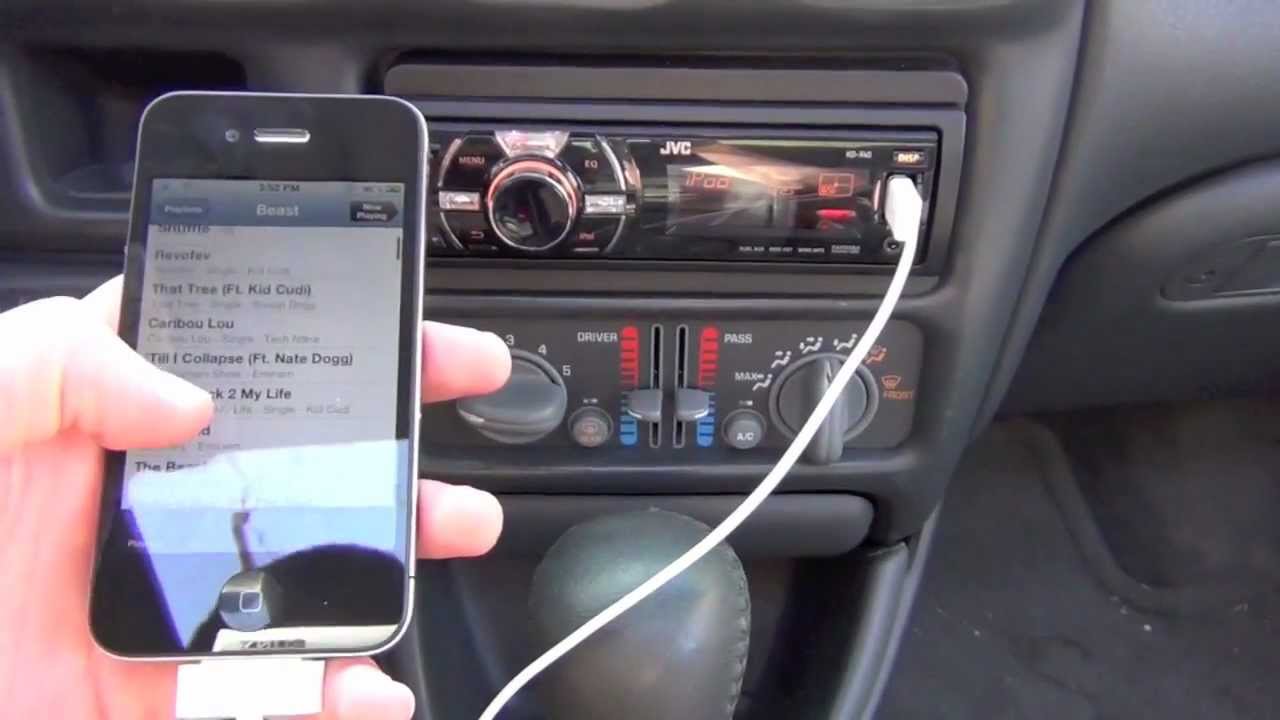
Using a USB cable is a simple way to connect your iPhone to your car stereo. This method lets you play music and use apps safely while driving. It also charges your phone at the same time. Follow these steps to get started quickly.
Locate Usb Port In Car
Find the USB port in your car. It is often near the dashboard or inside the center console. Some cars have the port in the glove box. Check your car manual if you cannot find it.
Connect Iphone With Lightning Cable
Use your iPhone’s Lightning cable to connect it to the car’s USB port. Plug one end into your phone and the other into the car. The phone screen may show a prompt. Allow the connection to continue.
Access Music And Apps
Once connected, your car stereo will detect the iPhone. Use the stereo controls to browse music or apps. You can play songs stored on your phone. Many car systems support apps like Apple Music or Spotify. Keep your eyes on the road and use voice commands if available.
Connect Using Auxiliary Cable
Connecting your iPhone to your car stereo using an auxiliary cable is a quick and easy way to play music. This method does not require Bluetooth or Wi-Fi. Just a simple cable and your car’s AUX port are enough.
The auxiliary cable transfers audio directly from your phone to the stereo. It works with most car models and iPhones. No extra apps or settings are needed.
Find Aux Input On Stereo
Look for a small round port on your car stereo labeled “AUX” or “Auxiliary.” It usually sits on the front panel or inside the center console. The port is about 3.5mm wide, like a headphone jack.
Some cars may hide the AUX input behind a cover or inside a storage compartment. Check your car manual if you cannot find it.
Plug In Aux Cable
Take one end of the auxiliary cable and plug it into your iPhone’s headphone jack or Lightning-to-3.5mm adapter. Insert the other end into the car’s AUX input.
Push both ends firmly to ensure a solid connection. Loose plugs can cause poor sound quality or no sound at all.
Adjust Stereo Settings
Turn on your car stereo and select “AUX” as the audio source. You may need to press a button labeled “Source,” “Mode,” or “Media” to switch to AUX mode.
Play music on your iPhone. Adjust the car stereo volume and your phone volume for the best sound. Make sure the phone is not muted.
Use Apple Carplay
Apple CarPlay makes connecting your iPhone to your car stereo simple. It lets you use apps, make calls, and get directions safely while driving. CarPlay gives you easy access to your iPhone’s features on your car’s screen. Follow these steps to use Apple CarPlay in your vehicle.
Check Carplay Support
Check if your car supports Apple CarPlay before starting. Most cars made after 2016 have this feature. Look for the CarPlay logo on your car’s display or manual. If unsure, visit your car manufacturer’s website for details.
Set Up Carplay On Iphone
Unlock your iPhone and go to Settings. Tap “General,” then select “CarPlay.” Choose your car from the list of available connections. Connect your iPhone to the car using a USB cable or Bluetooth if supported. Follow the on-screen prompts to complete the setup.
Control Features Via Carplay
Once connected, use your car’s touchscreen, knobs, or voice commands. You can make calls, send messages, and listen to music safely. Use Apple Maps for navigation with clear directions. Control apps without touching your phone, keeping your focus on the road.
Optimize Sound Quality
Optimizing sound quality enhances your listening experience in the car. Clear and balanced audio makes every song enjoyable. Small tweaks can make a big difference in how music sounds through your car stereo.
Adjust Equalizer Settings
Equalizer settings control bass, midrange, and treble sounds. Find the equalizer menu on your car stereo or iPhone app. Try different presets like rock, jazz, or pop to see what fits best. You can also adjust bass and treble manually. Lower the bass if the sound feels too heavy. Raise the treble for clearer vocals and instruments. Fine-tune settings until the music sounds natural and balanced.
Manage Volume Levels
Keep volume at a moderate level to avoid distortion. High volume can cause sound to crack or lose clarity. Set volume on your iPhone and car stereo separately for the best mix. Avoid sudden volume changes to protect your ears and speakers. Use volume limit settings on your iPhone to keep sound safe. This helps maintain clear sound without damage or discomfort.
Common Connection Problems
Connecting your iPhone to your car stereo should be easy. Yet, common connection problems can stop the music. These problems cause frustration and confusion. Knowing how to fix them saves time and effort. The following tips help you solve these issues quickly.
Reset Connections
Resetting connections often solves pairing problems. Turn off Bluetooth on both your iPhone and stereo. Wait for 10 seconds. Turn Bluetooth back on and try connecting again. Forget the device on your iPhone and pair it fresh. This clears old data that may block connection.
Update Firmware
Old software can cause connection errors. Check your car stereo for firmware updates. Visit the manufacturer’s website or use the stereo’s menu. Update your iPhone to the latest iOS version. Keeping both devices updated improves compatibility and fixes bugs.
Seek Professional Help
Some issues need expert attention. If problems continue, visit a car audio specialist. They can check wiring and hardware inside your stereo. Experts have tools to diagnose hidden faults. Getting help ensures a secure and stable connection.
Credit: www.youtube.com
Frequently Asked Questions
How Do I Pair My Iphone With My Car Stereo?
To pair your iPhone, turn on Bluetooth on both devices. Select your car stereo name from the iPhone’s Bluetooth menu and confirm the pairing code if prompted. Once connected, audio will stream wirelessly through the car speakers.
Can I Use Apple Carplay To Connect My Iphone?
Yes, if your car supports Apple CarPlay, use a USB cable or wireless option. Connect your iPhone and follow on-screen prompts. CarPlay lets you access apps, navigation, and music safely through your car’s display.
What If My Iphone Won’t Connect To The Car Stereo?
First, restart both your iPhone and car stereo. Ensure Bluetooth is enabled and devices are in pairing mode. Remove old Bluetooth connections if needed. Updating your iPhone’s iOS and car firmware can fix compatibility issues.
Is It Possible To Connect Iphone Via Aux Or Usb?
Yes, use an AUX cable to connect your iPhone’s headphone jack or a Lightning-to-USB cable for USB connection. This provides a wired option to play music and charge your device simultaneously.
Conclusion
Connecting your iPhone to your car stereo makes driving more fun. You can listen to music, podcasts, or take calls hands-free. Use Bluetooth, USB, or an auxiliary cable to link your devices. Follow the steps carefully for a smooth connection every time.
Enjoy safer, easier control of your phone while on the road. Keep your focus on driving and let your stereo do the rest. Simple setup leads to better trips and less distraction. Try these tips today and enhance your driving experience.