
Are you tired of fumbling with cords or struggling to hear your favorite songs clearly while driving? Connecting your iPhone to your car stereo can change the way you experience music, calls, and navigation on the road.
Imagine effortlessly streaming playlists, taking hands-free calls, and using voice commands—all through your car’s sound system. In this guide, you’ll discover simple, step-by-step ways to connect your iPhone to your car stereo, no matter your car model or tech comfort level.
Keep reading, and you’ll be enjoying seamless audio in no time.
Check Your Car Stereo Compatibility
Connecting your iPhone to your car stereo starts with checking compatibility. Not every car stereo works the same way with iPhones. Knowing your stereo’s features helps you pick the right connection method. This saves time and avoids frustration.
Compatibility depends on your stereo model and its available ports or wireless options. Some older models may not support modern iPhone connections. Newer stereos often have Bluetooth or auxiliary input. You need to identify what your car stereo offers.
Identify Stereo Model
Find your car stereo’s brand and model number. This info is usually on the front panel or inside the user manual. You can also check your car’s manual for stereo details. Knowing the exact model helps you search for connection options online. It also tells you if your stereo supports iPhone connections directly.
Look For Bluetooth Or Aux Support
Check if your stereo supports Bluetooth. Bluetooth allows wireless audio streaming from your iPhone. Many modern cars have this feature built-in. If Bluetooth is not available, look for an auxiliary (Aux) input. It is a small round port usually marked as “Aux.” You can connect your iPhone using a headphone jack or adapter through this port. These options make it easier to play music or use phone calls through your car stereo.
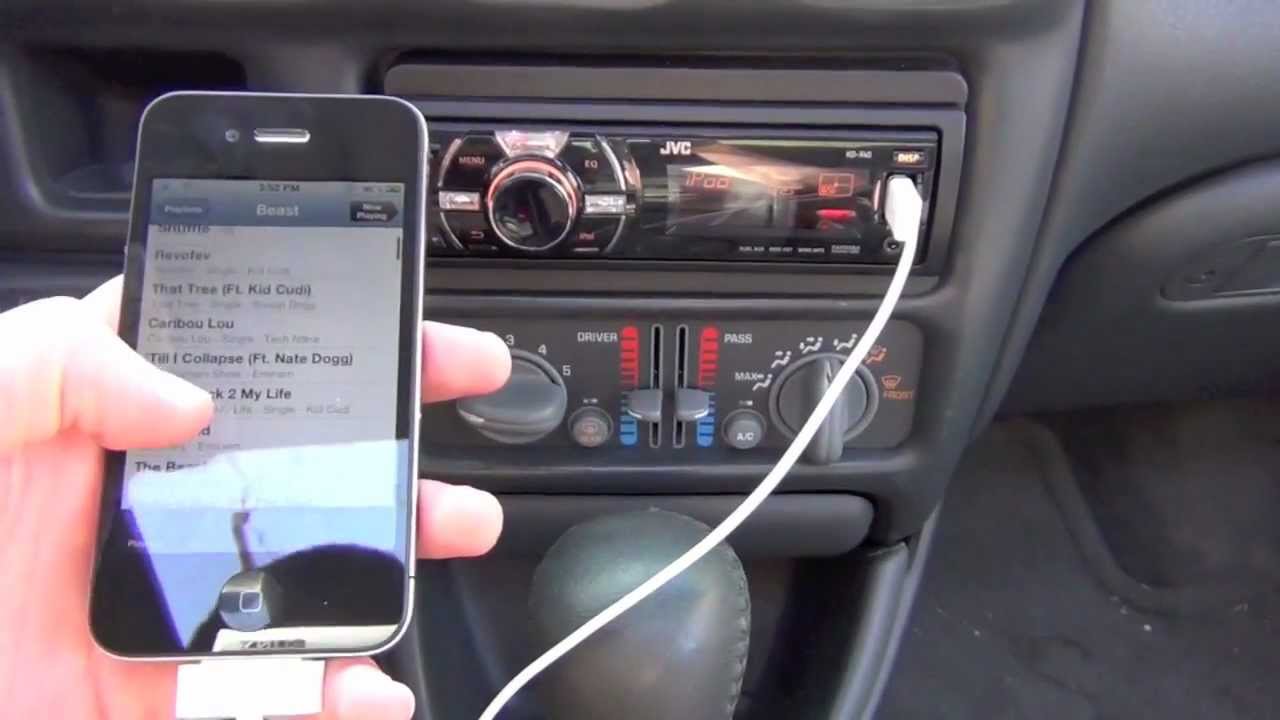
Credit: www.youtube.com
Connect Using Bluetooth
Connecting your iPhone to your car stereo using Bluetooth is a simple way to enjoy music and calls. It removes the need for cables and allows wireless control. Most modern cars support Bluetooth, making this method popular and convenient.
The process involves turning on Bluetooth on your iPhone, pairing it with your car stereo, and fixing any connection problems. Follow these steps to get started quickly.
Enable Bluetooth On Iphone
Open the Settings app on your iPhone. Tap on “Bluetooth” to enter the Bluetooth menu. Switch the Bluetooth toggle to the ON position. Your iPhone will start searching for nearby devices. Keep this screen open while pairing.
Pair With Car Stereo
Turn on your car stereo and activate its Bluetooth mode. Check your car manual for exact instructions if needed. On your iPhone, look for your car stereo’s name under “Other Devices.” Tap the name to connect. Enter a PIN if your car stereo asks for one. Once paired, the devices will remember each other.
Troubleshoot Connection Issues
Sometimes the connection may fail or drop. Restart your iPhone and car stereo to fix minor glitches. Make sure both devices have Bluetooth turned on. Remove old Bluetooth pairings from your iPhone if the list is full. Check if your car stereo supports your iPhone’s Bluetooth version. Update your iPhone’s software for better compatibility.
Use Auxiliary Cable
Using an auxiliary cable is a simple way to connect your iPhone to your car stereo. This method works with many car models and does not need Bluetooth or special apps. You just need a basic aux cable with a 3.5mm jack on both ends. The sound quality is clear and direct because the connection is wired.
Follow these easy steps to get your music playing through the car speakers quickly.
Locate Aux Input
Find the aux input port in your car. It looks like a small, round hole. Usually, it is near the dashboard, center console, or glove box. Some cars have it inside the armrest or near the gear shift. The port is often labeled “AUX” or “Auxiliary.”
Connect Iphone With Aux Cable
Plug one end of the aux cable into your iPhone’s headphone jack. If your iPhone has no headphone jack, use a Lightning to 3.5mm adapter. Insert the other end of the cable into the car’s aux input port. Make sure both ends fit securely for the best sound.
Adjust Car Stereo Settings
Turn on your car stereo and select the “AUX” or “Auxiliary” input mode. Play music on your iPhone. Adjust the volume on both your phone and car stereo to a comfortable level. This step ensures clear and balanced sound while driving.
Connect Via Usb Cable
Connecting your iPhone to your car stereo using a USB cable is a simple and reliable method. It allows you to play music, use apps, and charge your phone at the same time. This connection offers clear sound and easy control right from your car’s dashboard. Follow these steps to connect your iPhone via USB cable.
Find Usb Port In Car
Look for the USB port in your car. It is usually located near the dashboard, center console, or inside the glove box. Some cars have more than one USB port. Choose the one labeled for media or phone connection. This port will link your iPhone directly to the car stereo.
Use Lightning To Usb Cable
Use the original Lightning to USB cable that came with your iPhone. Plug the Lightning end into your iPhone. Then, connect the USB end into the car’s USB port. This cable transfers both data and power, allowing your phone to charge and communicate with the stereo.
Access Music And Apps
Once connected, your car stereo may ask for permission to access your iPhone. Allow access to see your music library and apps. Use the car’s screen or steering wheel controls to play songs or open apps. This setup keeps your focus on the road while enjoying your favorite music.
Use Apple Carplay
Apple CarPlay offers a simple way to connect your iPhone to your car stereo. It lets you use your phone safely while driving. You can access maps, music, calls, and messages on your car’s display. CarPlay helps keep your focus on the road and your hands on the wheel.
Setting up CarPlay takes only a few steps. Your car and iPhone work together to create a smooth experience. Below are easy instructions to get started and make the most of CarPlay.
Check Carplay Compatibility
Not all cars support Apple CarPlay. Check your car’s manual or website for compatibility. Most new models from popular brands include CarPlay support.
Your iPhone must run iOS 7.1 or later for CarPlay. Use an iPhone 5 or newer for the best experience. Confirm your stereo system supports CarPlay via USB or wireless connection.
Set Up Carplay On Iphone
Start by connecting your iPhone to the car stereo using a Lightning cable. Some cars allow wireless CarPlay; enable Bluetooth and Wi-Fi on your phone.
On your iPhone, go to Settings > General > CarPlay. Select your car from the list of available connections. Follow the prompts to complete the setup.
Allow CarPlay to access your phone while locked. This keeps CarPlay active during your drive.
Navigate Carplay Features
CarPlay shows apps on your car’s screen in a simple layout. Use the touchscreen, knobs, or voice commands to control it. Press and hold the voice button to activate Siri.
Access navigation apps like Apple Maps for turn-by-turn directions. Play music from Apple Music or other supported apps. Make calls and send messages hands-free.
CarPlay lets you stay connected without distractions. It keeps your driving safe and your phone useful.
Stream Music With Fm Transmitter
Streaming music with an FM transmitter is a simple way to play your iPhone’s audio through your car stereo. This method works well for cars without Bluetooth or auxiliary input. The FM transmitter sends your iPhone’s sound over a radio frequency. Your car radio picks up that signal and plays the music loud and clear. The setup is quick and requires only a few easy steps.
Select Fm Frequency
Start by turning on the FM transmitter. Choose an unused FM frequency on the transmitter. Look for a frequency with no radio stations nearby. This helps to avoid static or interference. You can scan your car radio to find a clear spot on the dial. Set the transmitter to that frequency.
Pair Iphone With Fm Transmitter
Turn on Bluetooth on your iPhone. Search for the FM transmitter in the Bluetooth settings. Select the transmitter to pair your devices. Some transmitters also connect via an audio cable. Follow the transmitter’s instructions for pairing. Once connected, your iPhone sound will play through the transmitter.
Tune Car Stereo To Transmitter
Turn on your car stereo and tune it to the FM frequency set on the transmitter. Adjust the volume on both your iPhone and car stereo. Play music or any audio from your iPhone. The sound should come through your car speakers. Adjust the transmitter frequency if you hear noise or static. This method lets you enjoy your favorite songs on the road easily.
Tips For Better Connection
Connecting your iPhone to your car stereo should be easy and smooth. Sometimes, the connection may drop or sound poor. Small changes can improve your experience a lot. Follow these tips for a better connection every time you drive.
Keep Software Updated
Update your iPhone and car stereo software regularly. New updates fix bugs that cause connection problems. Check for updates in your iPhone’s Settings under General. For your car stereo, visit the manufacturer’s website or use its app. Updated software helps devices talk clearly to each other.
Avoid Interference
Other wireless devices can interrupt your connection. Turn off Bluetooth on other nearby devices. Avoid using Wi-Fi or other signals near your car. Keep the car windows closed to reduce outside noise. Less interference means clearer sound and fewer drops.
Secure Device Placement
Place your iPhone where it stays still during the drive. Avoid areas near metal or glass that block signals. Use a phone mount close to the stereo system. A steady position helps keep Bluetooth or cable connections strong. It also makes it safer to use your phone while driving.
Credit: www.businessinsider.com

Credit: www.mobilefun.co.uk
Frequently Asked Questions
How Do I Connect My Iphone To A Car Stereo Via Bluetooth?
Go to your car stereo’s Bluetooth settings and enable pairing mode. On your iPhone, open Settings > Bluetooth and select your car stereo from the list. Confirm the pairing code if prompted. Your iPhone will then connect wirelessly to the car stereo for audio and calls.
Can I Use A Usb Cable To Connect My Iphone To Car Stereo?
Yes, connect your iPhone to the car stereo using a compatible Lightning-to-USB cable. The stereo will recognize the device and allow you to play music or access apps. This method also charges your iPhone while connected and provides a stable audio connection.
What Apps Work Best When Connecting Iphone To Car Stereo?
Apple CarPlay, Spotify, and Apple Music are popular apps for car stereo use. CarPlay provides a seamless interface on supported stereos. Streaming apps like Spotify offer easy access to playlists and podcasts while driving, enhancing your audio experience.
Why Isn’t My Iphone Connecting To My Car Stereo?
Common issues include Bluetooth being turned off, outdated software, or incompatible devices. Restart both your iPhone and car stereo, update their firmware, and ensure they are in pairing mode. Also, check that your car stereo supports iPhone connections.
Conclusion
Connecting your iPhone to your car stereo is simple and quick. Use Bluetooth, USB, or an auxiliary cable to link devices. Make sure your car stereo supports your chosen connection method. Adjust settings on your iPhone and stereo for best sound quality.
Enjoy hands-free calls and music while driving safely. Try each option to find what works best for you. Stay connected on the road with ease and convenience.