
Want to enjoy your favorite music and take calls hands-free while driving? Connecting your phone to your car stereo via Bluetooth is the easiest way to do this.
But if you’re not sure how to set it up, don’t worry—you’re in the right place. This guide will walk you through simple, clear steps to get your phone and car stereo talking to each other. By the end, you’ll be ready to drive safer and enjoy your road time like never before.
Keep reading, and you’ll have it done in no time!
Credit: www.businessinsider.com
Prepare Your Devices
Preparing your devices is the first step to connect your phone to your car stereo via Bluetooth. This step ensures a smooth and quick pairing process. It saves time and avoids frustration while driving. Follow these simple actions before starting the connection.
Check Bluetooth Compatibility
Not all phones or car stereos support Bluetooth. Check your car’s manual or settings to confirm Bluetooth availability. On your phone, go to the settings menu and look for Bluetooth options. Make sure both devices support the same Bluetooth version or profiles. This helps avoid connection problems later.
Charge Your Phone And Car Stereo
Low battery can stop the Bluetooth from working properly. Charge your phone fully before connecting it to the car stereo. Also, ensure your car stereo has enough power or is turned on. A strong battery keeps the connection stable and prevents interruptions during use.
Enable Bluetooth On Phone
To connect your phone to a car stereo using Bluetooth, the first step is to enable Bluetooth on your phone. This allows your phone to communicate wirelessly with the car’s audio system. Enabling Bluetooth is quick and easy. Follow simple steps to access and activate Bluetooth in your phone’s settings.
Access Bluetooth Settings
Start by unlocking your phone. Find the “Settings” app on your home screen or app drawer. Open the “Settings” menu. Scroll through the options until you see “Bluetooth.” Tap on “Bluetooth” to open its settings. This area controls your phone’s wireless connections.
Turn On Bluetooth
Inside the Bluetooth settings, look for a switch or toggle button. Slide or tap it to turn Bluetooth on. Once on, your phone will start searching for nearby devices. Your car stereo should appear on the list if it is in pairing mode. Keep Bluetooth on to maintain the connection while driving.
Activate Car Stereo Bluetooth
Activating the Bluetooth on your car stereo is the first step to connect your phone. This process allows your car to find your phone and play music or calls through the speakers. The steps are simple and quick to follow.
Locate Bluetooth Mode
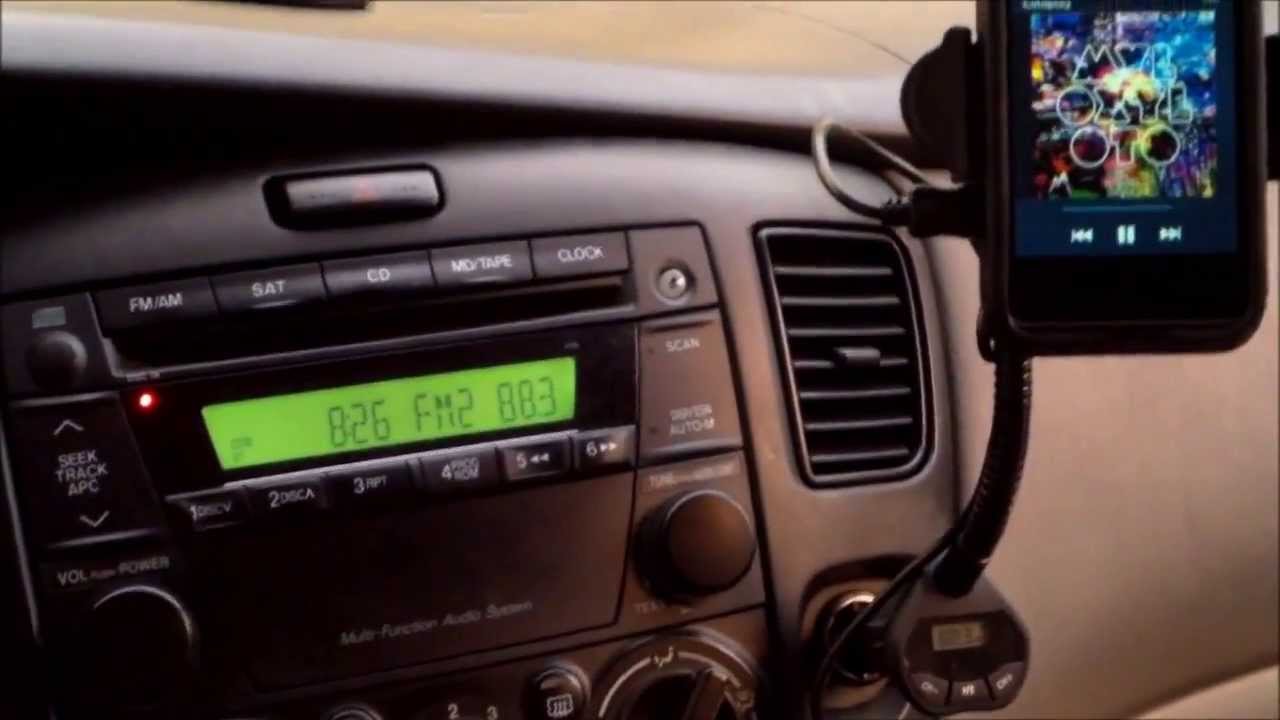
Start by finding the Bluetooth mode on your car stereo. Look for a button or menu labeled “Bluetooth,” “BT,” or a Bluetooth symbol. Press this button or select the menu option to switch the stereo into Bluetooth mode. This step prepares the system to connect with your phone.
Make Car Stereo Discoverable
Once in Bluetooth mode, make your car stereo discoverable. This means your car’s Bluetooth will be visible to your phone. Usually, the stereo screen will show a message like “Searching” or “Ready to pair.” Some models require you to press a button to enable discoverability. Check the stereo’s display or manual for exact instructions.
Credit: www.youtube.com
Pair Phone With Car Stereo
Pairing your phone with a car stereo connects the two devices wirelessly. This lets you play music and answer calls through the car speakers. The process is simple and takes only a few steps. Follow these instructions to pair your phone with your car stereo quickly and easily.
Search For Available Devices
Turn on Bluetooth on your phone and car stereo. On your phone, open the Bluetooth settings. Look for a list of available devices to connect. Your car stereo should appear in this list. It usually shows the car model or brand name. Tap the car stereo name to start pairing.
Select Car Stereo
Choose your car stereo from the list on your phone. Make sure the car stereo is in pairing mode. Some cars need you to press a button to activate this mode. Your phone will try to connect to the car stereo once selected. Wait for the devices to recognize each other.
Enter Or Confirm Passcode
Sometimes, a passcode is needed to complete pairing. The car stereo or phone may show a code on the screen. Check if the codes match on both devices. If they do, confirm the passcode on your phone. If not, enter the code shown on the car stereo. This step secures the connection between devices.
Test Connection
After pairing your phone with the car stereo via Bluetooth, testing the connection is important. It ensures the devices communicate well. This step helps avoid issues while driving. Confirm that audio plays clearly and controls work properly. Follow these simple checks to verify the connection.
Play Audio From Phone
Open a music app on your phone. Select a song or playlist to play. Check if the sound comes from the car speakers. No sound? Check the Bluetooth connection again. Sometimes, the phone needs permission to play audio through Bluetooth. Make sure the car stereo is set to the Bluetooth input mode.
Adjust Volume And Settings
Use the car stereo volume buttons to adjust sound levels. Raise or lower volume to a comfortable level. Also, adjust the phone volume for better control. Check the car audio settings for Bluetooth sound options. Some cars allow equalizer adjustments or sound enhancement. Set these to your preference for the best experience.
Troubleshoot Common Issues
Troubleshooting Bluetooth issues between your phone and car stereo can save time and frustration. Problems often arise but most have simple fixes. Understanding common problems helps you get back on the road quickly.
Start with basic checks like ensuring Bluetooth is on for both devices. Check that your phone and car stereo are close enough to connect. Remove any old Bluetooth pairings that might cause conflicts.
Fix Connection Failures
First, turn off Bluetooth on both devices. Wait a few seconds, then turn them back on. This resets the connection process. Remove your car stereo from your phone’s paired devices list. Do the same on the car stereo if possible.
Try pairing the devices again from scratch. Ensure your car stereo is in pairing mode. Some models require pressing and holding a button to activate pairing. Follow your car manual for exact steps.
Resolve Audio Playback Problems
Check the volume level on both the phone and car stereo. Mute or low volume can block sound. Make sure the car stereo is set to Bluetooth audio input. Sometimes the stereo stays on radio or CD mode.
Restart the music app on your phone. Close and reopen it to refresh playback. Disconnect and reconnect Bluetooth if sound cuts out or skips. Clear any Bluetooth cache on your phone to remove old data.
Update Firmware And Software
Outdated software causes many Bluetooth issues. Check your phone for system updates. Install any available updates for better compatibility. Visit your car manufacturer’s website for stereo firmware updates.
Updating firmware can improve connection stability and audio quality. Follow update instructions carefully. Avoid interrupting the process to prevent damage. Regular updates keep your devices working smoothly together.
Maximize Bluetooth Audio Experience
Connecting your phone to your car stereo via Bluetooth offers more than just wireless music streaming. It creates a safer and more convenient driving experience. To get the best out of this connection, you need to understand how to use the features fully. Simple steps can enhance sound quality, ease of use, and device management.
Use Hands-free Features
Hands-free calling keeps your focus on the road. Use voice commands to make and answer calls. Many car stereos support voice assistants like Siri or Google Assistant. This lets you control calls without touching your phone. Enjoy clear conversations without distractions.
Manage Multiple Devices
Car stereos can connect to more than one phone. You can switch between devices easily. This is helpful if family members share the car. Set priority devices to avoid confusion. Delete old or unused connections to keep the system fast.
Maintain Device Pairings
Keep your device pairings up to date. Sometimes, pairing errors cause connection problems. Re-pair devices regularly to improve stability. Also, update your phone and car stereo software. Clean connections ensure smooth audio playback and call quality.
Credit: www.mytrendyphone.eu
Frequently Asked Questions
How Do I Pair My Phone With Car Stereo Via Bluetooth?
Turn on Bluetooth on both devices. Select your car stereo name on your phone’s Bluetooth list. Confirm the pairing code if prompted. Your devices will connect automatically after pairing.
Why Won’t My Phone Connect To Car Bluetooth?
Check if Bluetooth is enabled on both devices. Ensure your phone and car stereo are in pairing mode. Restart both devices and try again. Clear previous Bluetooth connections if needed.
Can I Use Bluetooth For Calls And Music In My Car?
Yes, Bluetooth allows hands-free calling and audio streaming. Once connected, your car stereo can handle calls and play music from your phone wirelessly.
How To Improve Bluetooth Connection Quality In My Car?
Keep your phone close to the car stereo. Remove other Bluetooth devices nearby to avoid interference. Update your phone and car stereo software regularly for better performance.
Conclusion
Connecting your phone to a car stereo via Bluetooth is simple. Just follow the steps carefully. Pairing your devices lets you enjoy hands-free calls and music. It keeps your drive safer and more fun. Sometimes, you may need to check your car’s manual for help.
Try reconnecting if the connection drops. Practice makes it easier over time. Stay patient and enjoy wireless freedom on the road.